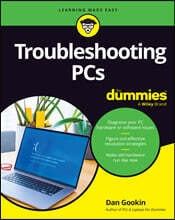

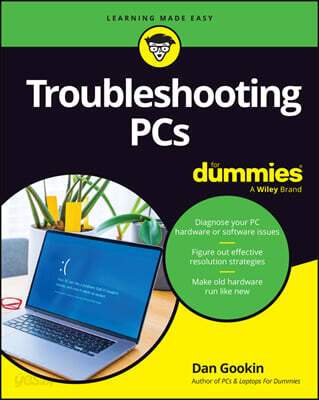
이미 소장하고 있다면 판매해 보세요.
- 국내배송만 가능
- 해외 거래처 사정에 의하여 품절/지연 가능
- 도서 정보 중 미표기 사항 안내?
- 문화비소득공제 가능
책소개
목차
|
Introduction 1 About This Book 1 How This Book Works 2 Icons Used in This Book 3 Beyond the Book 3 Where to Go from Here 3 Part1: Quick Solutions for Annoying Problems 5 Chapter 1: O Trouble, Hinder Thy Bidding! 7 The Secret Source of Computer Woe 7 The Four Horsemen of the Computer Apocalypse 8 New software and updates 9 New or failing hardware 9 Altered settings 10 Time 11 Hardware-versus-Software Problems 11 Dealing with software issues 12 Solving hardware issues 12 Addressing firmware issues 13 When and Whether to Give Up 13 Chapter 2: Quick Fixes 15 Things to Try First 15 Checking the Settings app 16 Restarting the PC 16 Restarting a stubborn PC or laptop 17 Running a troubleshooter 18 Repairing a program 19 Help! 20 Locating Internet support 20 Downloading drivers 22 Perusing forums 24 Contacting tech support 24 Avoiding remote desktop access 26 Table of Contents iii Part2: What’s Wrong Now? 27 Chapter 3: Startup Problems 29 The Onset of PC Heartbreak 29 I Power On 30 What happens 30 What could go wrong 30 Troubleshooting steps 31 II The POST 33 What happens 33 What could go wrong 33 Troubleshooting steps 34 III Startup Options 35 What happens 35 What could go wrong 36 Troubleshooting steps 36 IV The Search for an Operating System 39 What happens 39 What could go wrong 40 Troubleshooting steps 40 V Operating System Initialization 41 What happens 41 What could go wrong 41 Troubleshooting steps 42 VI. Sign In to Windows 42 What happens 42 What could go wrong 43 Troubleshooting steps 43 The Last Thing You Do 43 Chapter 4: Deter Disk Disaster 45 Windows Storage Overview 45 The Drive Is Full 46 Measuring digital things 47 Using Storage Sense 48 Dealing with large files 49 Uninstalling programs and apps 50 Compressing files 51 More Mass Storage 52 Adding storage media 52 Removing media and mass storage 53 Replacing Drive C 55 Drive Management and Maintenance 56 Defragmentating a drive 56 Checking storage media for errors 58 Formatting media 59 Fun with Partitions 62 Examining drive partitions 63 Creating a new volume in unallocated space 64 Shrinking a volume 65 Extending a partition 67 Deleting a partition 69 Chapter 5: Monitor Mayhem 71 The PC Graphics System 71 Using the proper monitor terms 72 Exploring the PC’s graphics system 72 Connecting the data cable 73 Discovering your PC’s display adapter 75 Exploring the monitor 76 Adjusting the monitor 78 Saving your eyeballs 79 Captain Video Troubleshooter 80 Seeing nothing 81 Seeing nothing on the monitor 81 Seeing only the mouse pointer 81 Swapping hardware 82 Saving power 82 Adjusting the resolution and scale 84 Updating the video driver 85 Disabling the video driver 87 Chapter 6: Deep Inside the Case 89 Open and Shut 89 Opening the PC case 90 Exploring the guts 91 Closing the PC case 95 Things to Upgrade, Fix, or Repair Inside the Case 96 Upgrading the power supply 97 Replacing the clock battery 98 Expanding memory 99 Adding an expansion card 102 Adding or replacing an internal drive 104 Power Management Issues 108 Locating secret power management controls 109 Setting power management options for specific devices 111 Recovering from a PC coma 113 Updating power drivers 113 Chapter 7: Printer Problems. 115 Between the Computer and Printer 115 Connecting a printer 116 Configuring the printer in Windows 117 Controlling the printer 118 Disconnecting a printer 118 The Windows Side of Printing 119 Printing in Windows 119 Using the Page Setup dialog box 121 Setting the default printer 122 Working with print jobs 123 Canceling a print job 124 Printer Problems and Solutions 125 “It printed on the wrong side of the page!” 125 “Print preview lied!” 126 “What’s this extra page?” 126 “What are these wrong colors and streaks?” 126 “I just loaded paper, but the printer says the tray is empty!” 127 “The paper keeps jamming!” 127 Using the Printing Troubleshooter 128 Chapter 8: Peripheral Perils 129 Hardware Troubleshooting 130 Unwinding wireless connections 130 Diagnosing USB issues 131 Doing the hardware swap 132 Running a hardware troubleshooter 133 Audio Anxieties 134 Testing the speakers 134 Fixing silence 136 Testing the microphone 137 Updating audio device drivers 138 Keyboard and Mouse Woes 138 Troubleshooting basic input dilemmas 139 Vacuuming a keyboard 140 Cleaning the mouse 140 Chapter 9: Software Situations 143 Installation Issues 143 Adding software 144 Dealing with installation woe 145 Banish Unwanted Programs 145 The Good and Evil of File Association 147 Understanding file association 147 Hiding or showing file extensions 148 Changing file association 149 Dealing with unknown file types 150 Common Software Problems and Solutions 151 “How can I stop this program from starting automatically?” 151 “I need to run this older program” 154 “This program is broken!” 156 Chapter 10: Network Nuisances 157 Network Connection and Configuration 159 Checking the wires 159 Checking the invisible wires (a wireless network) 160 Viewing the network 161 Managing wireless connections 162 Checking network privacy 162 Network Troubleshooting 164 Checking the Device Manager 164 Resetting the network hardware 164 Updating the NIC driver 165 Resetting the broadband modem 166 Restarting the entire dang doodle network 166 Network Problems and Solutions 167 “What’s this firewall warning?” 167 “Where did that network PC go?” 168 “I can’t get a wireless connection!” 168 “The Wi-Fi password has changed!” 168 “What’s a ‘metered connection’?” 169 Chapter 11: Shutdown Issues 171 Such a Turn-Off 172 Walking through the Windows shutdown process 172 Powering over the power button 173 Problems with Restarting 175 Experiencing a random restart 176 Restarting automatically 177 Shutdown Malaise 178 Upgrading software to fix shutdown issues 179 Turning off a stubborn PC 179 Waiting for an update to install 179 Discovering that another user is signed in! 180 Dealing with the Shutdown/Restart Anyway prompt 181 Part3: Troubleshooting Tools 183 Chapter 12: The Device Manager 185 Your Hardware Oracle 185 Opening the Device Manager 186 Checking hardware in the Settings app 187 Device Manager Duties 188 Dealing with errant hardware 188 Updating driver software 189 Disabling a device 191 Chapter 13: The Task Manager 193 Task Control Central 193 Summoning the Task Manager 194 Exploring the Task Manager window 196 Connecting programs to processes 196 Examining all the processes 197 Enjoying the services 200 Here a Task, There a Task 202 Terminating a stuck program 202 Halting a process on the Details tab 203 Disabling startup programs 203 Chapter 14: The Windows Registry 205 Behold the Registry 205 Understanding the Registry 206 Using the Registry Editor 208 Backing up the Registry 209 Modifying the Registry 210 Making specific Registry changes 211 Finding stuff in the Registry 214 Registry Cleaning 215 Chapter 15: Events and Diagnostics 217 What’s Going On Here? 217 Monitoring details in the Task Manager 217 Viewing the Performance Monitor 218 Checking resources 220 What Went On Here? 221 Reviewing events 222 Understanding events 223 Filtering and searching events 224 Diagnostics to the Rescue 225 Understanding diagnostics 226 Viewing system information 226 Diagnosing DirectX 227 Running the Windows Memory Diagnostic tool 229 Using other diagnostic tools 230 Chapter 16: System Restore 233 The System Restore Philosophy 233 Understanding System Restore 234 Accepting System Restore’s limitations 235 Activating System Restore 235 Restore the System, Restore Your Sanity 236 Setting a restore point 236 Running System Restore 237 Choosing an older restore point 240 Accessing System Restore from the Windows Recovery Environment 240 Undoing a System Restore 241 Chapter 17: The MSCONFIG Utility 243 Welcome to Troubleshooting Central 243 Setting general startup options 245 Pulling up the Boot tab 245 Examining the startup services 246 Disabling a startup service 247 Troubleshooting Tools 248 About Windows 249 Change UAC Settings 250 Command Prompt 250 Computer Management 251 Event Viewer 251 Internet Options 251 Internet Protocol Configuration 252 Performance Monitor 253 Programs 253 Registry Editor 253 Remote Assistance 253 Resource Monitor 254 Security and Maintenance 254 System Information 254 System Properties 255 System Restore 255 Task Manager 256 Windows Troubleshooting 256 Chapter 18: Safe Mode 257 The Mode Is Safe 257 Safe Mode to the Rescue 258 Understanding Safe mode modes 258 Using diagnostic startup 259 Entering Safe mode 260 Reviewing the Safe Boot options 261 Getting into Safe mode at boot time 263 Entering Safe mode unexpectedly 263 Leaving Safe Boot Safe mode 264 Safe Mode Duties 265 Checking for problems in Safe mode 265 Running the System File Checker (SFC) 266 Reviewing the CBS.log file 268 Not Safe Mode Duties 269 Chapter 19: Windows Recovery Environment 271 Startup Keys and Recovery Options 271 Reviewing the startup keys 272 Locating recovery options in Windows 273 Resetting Windows 275 Using Advanced Startup 276 The Sacred Recovery Volume 276 Confirming the PC’s recovery volume 276 Creating a recovery volume 278 The Windows Recovery Environment 279 Starting the Windows Recovery Environment 279 Exploring the Windows Recovery Environment 280 Performing startup repair 281 Changing startup settings 282 Using the command prompt 283 Uninstalling updates 284 Accessing the UEFI 285 Choosing System Restore 286 Recovering a system image 286 Part4: Privacy and Security 287 Chapter 20: Software Updates 289 Look! Another Windows Update! 290 Understanding Windows Update 290 Configuring Windows Update 291 Reviewing updates 292 Updating drivers 293 Using the nerdy winget update tool 294 Other Software Updates 294 Update Hiccups 295 Undoing a Windows update 296 Fixing a stuck Windows update 296 Chapter 21: Keep the Bad Guys Out 299 Malicious + Software = Malware 299 Protecting your PC 299 Obtaining malware (accidentally) 301 Surviving the malware scourge 302 Defending against Viruses and Malware 303 Understanding malware protection 304 Scanning for malware 304 Dealing with an infection 305 Life Behind the Firewall 306 Understanding the firewall 306 Using the Windows Firewall 307 Dealing with a firewall alert 308 Reviewing firewall rules 310 Chapter 22: Backup and Restore 311 An Emergency Copy 311 Obtain Backup Storage 313 File History 314 Setting up File History 314 Reviewing File History settings 315 Recovering an older version of a file 316 Browsing File History 317 Restoring all your personal files 318 Cloud Backup 319 Using cloud backup 319 Backing up files on OneDrive 319 Traditional Backup 320 Configuring the backup procedure 321 Configuring Windows 7 backup 321 Modifying the Windows 7 backup 322 Running a manual backup 324 Restore to the Rescue 324 Restoring a single file 325 Restoring everything 326 The System Image 327 Creating the system image 327 Restoring a system image 329 Part5: the Part of Tens 331 Chapter 23: Ten Useful Utilities 333 The Task Scheduler 334 The Task Manager 336 The Policy Editor 336 The Services Console 338 The Computer Management Console 338 The Disk Management Console 339 The Event Viewer 339 The System File Checker 340 Troubleshooters 340 Resetting Windows 340 Chapter 24: Ten Tricks to Boost PC Performance 343 Spyware Sluggishness 344 Startup Program Overload 345 Is Memory Leaking? 345 More Memory, Please 346 More (and Newer) Mass Storage 346 Services Necessary and Unnecessary 347 A Less Graphical Solution 349 More or Fewer Processors 350 Laptop Battery Life 352 Bye-Bye, Bloatware 353 Index 355 |
저자 소개
Dan Gookin wrote the very first For Dummies book in 1991 and has authored several bestsellers with more than 11 million copies in print worldwide. His books have been translated into 32 languages, and he’s known for making complex technology simple and fun.
품목정보
- 발행일
- 2025년 12월 18일
- 쪽수, 무게, 크기
- 384쪽 | 522g | 185*231*25mm
- ISBN13
- 9781394390281
사락 별점0
혜택 및 유의사항밑줄0
혜택 및 유의사항상품정보안내
직수입외서의 경우, 해외거래처에서 제공하는 정보가 부족하여 제목, 표지, 가격, 유통상태 등의 정보가 미비하거나 변경되는 경우가 있습니다. 정확한 확인을 원하시는 경우, 일대일 상담으로 문의하여 주시면 답변 드리겠습니다.
(판형과 판수 등이 다양한 도서는 찾으시는 도서의 ISBN을 알려 주시면 보다 빠르고 정확한 안내가 가능합니다.)
해외거래처에서 품절인 경우, 2차 거래선을 통해 유럽과 미국 출판사로 직접 수입이 진행될 수 있습니다.
수입 진행 시점으로 부터 2~3주가 추가로 소요되며, 해외에서도 유통이 원활하지 않은 도서는 품절 안내가 지연될 수 있습니다.
해당 경우, 문자와 메일로 별도 안내를 드리고 있사오니 마이페이지에서 휴대전화번호와 메일주소를 다시 한번 확인해주시기 바랍니다.
(판형과 판수 등이 다양한 도서는 찾으시는 도서의 ISBN을 알려 주시면 보다 빠르고 정확한 안내가 가능합니다.)
해외거래처에서 품절인 경우, 2차 거래선을 통해 유럽과 미국 출판사로 직접 수입이 진행될 수 있습니다.
수입 진행 시점으로 부터 2~3주가 추가로 소요되며, 해외에서도 유통이 원활하지 않은 도서는 품절 안내가 지연될 수 있습니다.
해당 경우, 문자와 메일로 별도 안내를 드리고 있사오니 마이페이지에서 휴대전화번호와 메일주소를 다시 한번 확인해주시기 바랍니다.
41,440원
총 1개
41,440원